


When uploading files or pictures, the forum software assumes you only want to put up one picture. Fine in most cases - but if you want to put up many, follow this procedure:
Sorry for the complexity, the program was written by Geeks, not by Users
- Click "Post New Thread" or "Reply to Thread"
- If you clicked "Reply to Thread", scroll down to the lower right corner and click "Go Advanced" (Post New Thread automatically opens in the Advanced mode)
- You can add any verbiage to the thread box as you wish.
- Click on the Paperclip icon (not the image icon). This will open a dialog box that looks like this:
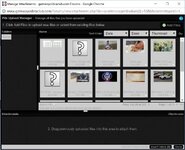
- In the upper right corner is a green PLUS + sign Add Files. Click on that and it will open a little window
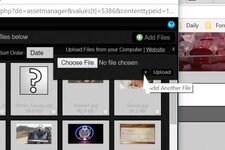
- With that window, you have on button to select an image from your files. If you click on the "+" sign at the lower right, it will add another section button. You can add as many as you choose. once you've selected the files you want, Click on the word "Upload"
- Once the upload is complete (You'll see thumbnails in the lower box), Click on the word "Insert Inline"
Sorry for the complexity, the program was written by Geeks, not by Users